

How to Enable 120 Hz, VRR, and HDR on PS5: Complete Setup and Troubleshooting
A complete PS5 display-output workflow that starts with the television or monitor, verifies the HDMI signal chain, configures the console, checks each game, and diagnoses the most common 120 Hz, VRR, and HDR failures.
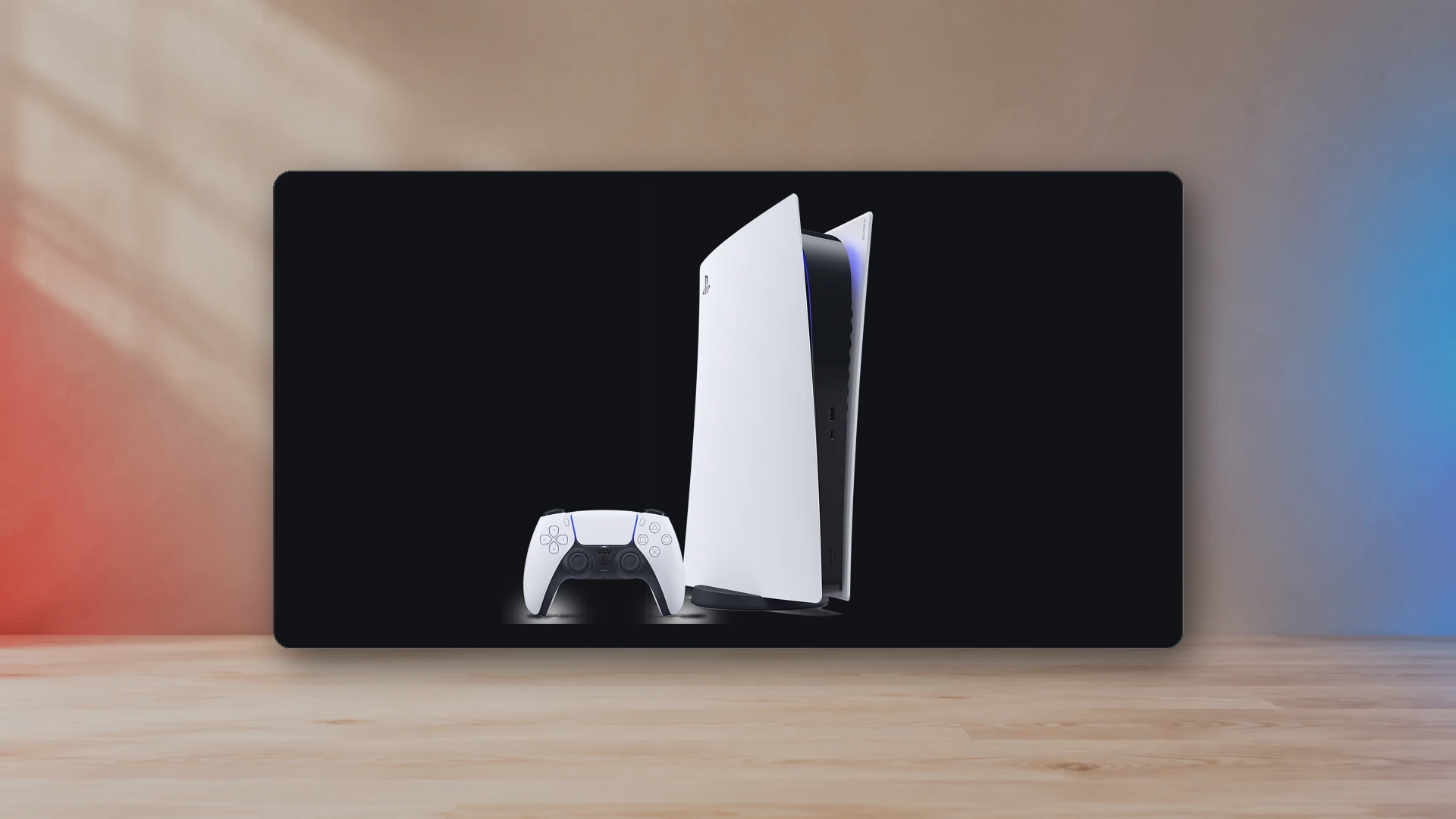
PS5 can output 120 Hz, variable refresh rate, and HDR, but those features do not become active simply because the display advertises them. The console, game, HDMI cable, HDMI port, display input mode, receiver or capture device, and in-game settings all have to agree on a compatible signal. A failure anywhere in that chain can leave the console at 60 Hz, disable VRR, reduce the resolution, or remove HDR.
Start by treating this as a signal-path problem rather than a single toggle. The fastest route is to confirm the display and port first, connect the console directly, configure the display’s low-latency or enhanced-HDMI mode, then verify the PS5 output information before changing a game’s graphics mode.
What each feature changes
120 Hz output
A 120 Hz signal lets the display refresh up to 120 times per second. It does not guarantee that every game renders at 120 frames per second. The game must offer a compatible high-frame-rate mode, and that mode may reduce resolution, ray tracing, crowd density, or other visual settings.
Variable refresh rate
VRR lets the source vary the display refresh timing instead of delivering frames into a fixed cadence. HDMI describes the purpose as reducing or eliminating tearing, judder, and related disruption when rendering time changes. VRR works inside a supported frequency range; it cannot make a low frame rate feel identical to a stable high frame rate.
HDR
HDR carries a wider luminance and color range than SDR. It still depends on the display’s real brightness, black level, tone mapping, local dimming or self-emissive panel behavior, and the game’s implementation. A weak or badly configured HDR display can look flatter than a correct SDR presentation.
ALLM and game mode
Auto Low Latency Mode allows a source to ask the display to enter its low-latency mode. The display may call this Game Mode, Auto Game Mode, Instant Game Response, or another manufacturer-specific name. ALLM does not measure latency, and it does not guarantee that every image-processing option is disabled.
Before changing the PS5 settings
- Identify the correct HDMI port. Some televisions support 4K at 120 Hz or VRR on only one or two inputs. Monitors may have different capabilities on HDMI and DisplayPort; PS5 uses HDMI.
- Enable the display’s enhanced input mode. Manufacturers use names such as Enhanced Format, HDMI Deep Color, Input Signal Plus, or 4K Enhanced. A port can physically accept the cable while remaining limited until this mode is enabled.
- Use the included PS5 HDMI cable or a certified Ultra High Speed HDMI cable. A cable that works at 4K 60 Hz can still fail when the link rate increases.
- Connect directly during setup. Temporarily remove receivers, soundbars, splitters, capture cards, adapters, and switches. Once the direct connection works, add each device back one at a time.
- Update firmware. Install current PS5 system software and current display firmware before diagnosing a compatibility issue.
Configure PS5 video output
Go to Settings → Screen and Video → Video Output. Begin with conservative automatic settings, verify the negotiated signal, and change only the setting connected to the problem.
- Resolution: use Automatic initially. Select 1440p only after running Test 1440p Output on a compatible monitor. Select 2160p when diagnosing a display that is incorrectly falling back to a lower resolution.
- VRR: set to Automatic. Test Apply to Unsupported Games separately; Sony notes that it can stabilize some titles but should be turned off if a game behaves unexpectedly.
- 120 Hz Output: set to Automatic. The game still needs its own 120 Hz or performance option.
- ALLM: set to Automatic when the display supports it. Remember that VRR can force low-latency behavior even if ALLM is shown as off.
- HDR: use On When Supported for the cleanest separation between SDR and HDR software. Always On converts SDR content into an HDR output container.
- Deep Color Output: leave on Automatic unless a specific troubleshooting step requires otherwise.
- RGB Range: leave on Automatic. A mismatched full or limited range can crush shadow detail or raise black levels.
- Video Transfer Rate: leave on Automatic. Sony provides -1 and -2 as troubleshooting options when a 4K signal flickers or fails, but those settings can reduce the available color format or high-rate modes.
Enable the game’s high-frame-rate mode
Many games do not switch automatically. Open the game’s graphics or display menu and look for Performance, High Frame Rate, 120 Hz, Balanced, or a similar mode. Some games expose the option only after the PS5 has negotiated a 120 Hz-capable signal. Others use a system preset under Settings → Saved Data and Game/App Settings → Game Presets → Performance Mode or Resolution Mode.
Use the display’s information panel, if available, to confirm the incoming refresh rate. Do not rely only on how smooth the game feels. A television can show a 120 Hz container while the game internally renders below 120 frames per second, and VRR can make fluctuating output look smoother.
How to verify the active signal
- Open PS5 Video Output Information before launching the game and record the detected resolution, HDR, VRR, and supported frequencies.
- Launch a game with a known high-frame-rate mode and enable that mode.
- Open the television or monitor’s signal information overlay. Look for the actual resolution, refresh rate, HDR state, and VRR state.
- Compare the game’s mode description with the display information. A performance mode can target 60 fps without using 120 Hz.
- Use the Display PPI and Viewing-Distance Calculator to check whether a resolution change is likely to be visible at your screen size and seating distance.
Fix 120 Hz that is missing or limited to 1080p
First connect the PS5 directly to the display and use the HDMI port documented for the highest bandwidth. Confirm that enhanced input mode is enabled. Set Resolution to Automatic, 120 Hz Output to Automatic, and Video Transfer Rate to Automatic. Then launch a game that actually supports a 120 Hz mode.
If 4K 120 Hz fails but 1080p 120 Hz works, the likely problem is link bandwidth or a device in the signal path. Test the included cable, remove receivers and capture hardware, update the display firmware, and verify that the correct input supports 4K 120 Hz rather than only 4K 60 Hz.
Fix VRR that is unavailable
Confirm that the display supports HDMI VRR on the selected port. FreeSync support alone does not prove PS5 compatibility. Enable the display’s VRR, adaptive-sync, or game-mode setting; set PS5 VRR to Automatic; and check Video Output Information again. If the screen flickers near the lower edge of the VRR range, test a stable frame-rate cap or disable VRR for that game rather than changing every system setting.
Read VRR, ALLM, 120 Hz, and HDMI 2.1 Explained for the underlying signal concepts.
Fix HDR that looks gray, dim, or clipped
Use On When Supported, confirm that the display has entered its HDR picture mode, and check that the HDMI input is configured for the required signal format. Disable dynamic contrast, eco dimming, or unrelated image processing while calibrating. Then follow the PS5 HDR Calibration Guide rather than copying another television’s slider values.
If blacks are gray or shadow detail disappears, verify RGB Range on both devices. If highlights lose detail, repeat Adjust HDR in the viewing conditions you normally use and review the display’s tone-mapping option.
Receiver, soundbar, capture card, and switch problems
An intermediate device must support the complete signal, not merely pass a picture. A receiver can support 4K 60 Hz but not 4K 120 Hz. A soundbar may pass HDR but not VRR. A capture card may accept 120 Hz input while its passthrough or capture path imposes different limits.
Prove the direct console-to-display connection first. Then add the receiver, soundbar, switch, or capture device. If the feature disappears, inspect that device’s port, firmware, enhanced-input setting, EDID mode, and passthrough specification.
Choose the right display before troubleshooting forever
If the display never reports the required capability, settings cannot create it. The Gaming Monitor Buying Guide for PS5 and Xbox explains ports, bandwidth, resolution, refresh rate, HDR, and console-specific tradeoffs. The input lag, response time, and refresh rate guide separates responsiveness claims that are often mixed together.
Final verification checklist
- Correct high-bandwidth HDMI port selected.
- Enhanced HDMI input mode enabled.
- PS5 connected directly during diagnosis.
- Included or certified Ultra High Speed HDMI cable tested.
- Resolution, VRR, 120 Hz, ALLM, HDR, Deep Color, and RGB Range reviewed.
- Game-specific performance or 120 Hz mode enabled.
- Display information overlay confirms the active signal.
- Firmware current on every device in the chain.
- HDR calibrated in the normal room lighting.
Sources
- How to change PS5 console resolutionPlayStation Support
- How to enable HDR on a PS5 consolePlayStation Support
- How to troubleshoot picture and sound issues with your PS5 consolePlayStation Support
- HDMI Variable Refresh RateHDMI Licensing Administrator
- HDMI Auto Low Latency ModeHDMI Licensing Administrator

Harry Negron
Harry Negron leads NexusArc's editorial direction across games, player culture, gear, and technology.