

Gaming Monitor Buying Guide for PS5 and Xbox: 4K, 120 Hz, VRR, HDR, and HDMI 2.1
A practical console-monitor guide that separates useful display features from marketing labels and helps match PS5 or Xbox output to the right panel.
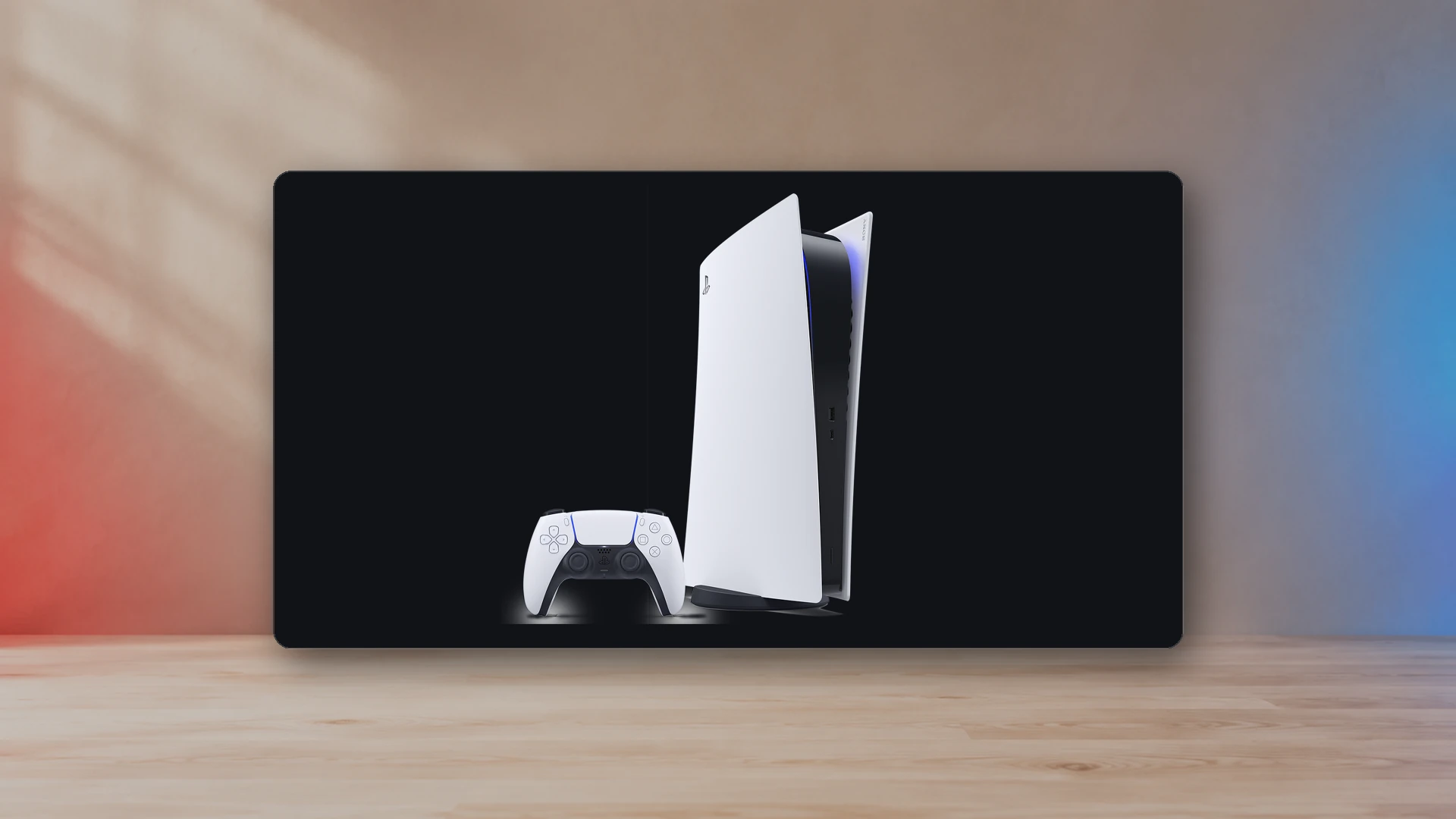
Start with the console output you will actually use
PS5 and Xbox Series consoles can target 4K output, high refresh rates, HDR, and variable refresh rate, but not every game combines all of those features at once. A monitor should be chosen around the modes you use most, not the largest number printed on the box.
For a desk setup, 27 to 32 inches is the common range. At 27 inches, 1440p can look sharp and is often affordable. At 32 inches, 4K becomes more valuable because the larger screen makes pixel density easier to notice.
Resolution: 1440p or 4K?
A 4K monitor is the straightforward choice for maximum console image detail and media use. It is also the more expensive route when paired with strong HDR and high refresh. A 1440p monitor can be a better value for a desk where the player prioritizes 120 Hz modes and does not need 4K desktop space.
Confirm the monitor accepts the console’s target resolution over HDMI. Some displays advertise a high panel refresh rate that is available only through DisplayPort, which consoles do not use.
Refresh rate and 120 Hz support
A 120 Hz-capable display can show supported games at up to 120 frames per second. The benefit is most obvious in fast shooters, racing games, and competitive action where lower frame time improves motion clarity and responsiveness.
A 144 Hz, 165 Hz, or faster monitor can still be a sensible console purchase, but the console does not need the extra headroom beyond its supported output. Treat refresh rates above 120 Hz as a benefit for a connected PC, not a console requirement.
Variable refresh rate
VRR allows the display refresh to follow the game’s output within a supported range, reducing tearing and making uneven frame delivery look smoother. Both the console and the monitor must support compatible VRR behavior over HDMI.
Do not assume that “Adaptive-Sync” on a product page guarantees every console mode. Check the manufacturer’s HDMI VRR support, firmware notes, and the actual supported range. A display can technically support VRR but still have poor behavior near the lower edge of its range.
HDMI 2.1 and bandwidth labels
HDMI version labels are not enough by themselves. What matters is whether the monitor accepts the resolution, refresh rate, color format, HDR mode, and VRR combination you need. A monitor can advertise HDMI 2.1 while offering less bandwidth than another product with the same label.
Look for explicit support statements such as 4K at 120 Hz over HDMI, VRR over HDMI, and the number of full-featured HDMI inputs. If both a PS5 and Xbox will stay connected, one suitable port is not enough.
HDR: brightness and local contrast matter
HDR is not created by accepting an HDR signal. A convincing HDR display needs enough brightness and contrast to separate highlights from dark areas. Edge-lit monitors with minimal dimming may accept HDR but show only a small improvement.
OLED panels provide excellent black levels and fast pixel response, but buyers should understand brightness behavior, text rendering, and long-term image-retention precautions. Mini-LED LCD displays can deliver strong highlights and local dimming without OLED’s emissive-pixel concerns, though blooming and zone behavior vary.
Panel type
| Panel | Strengths | Tradeoffs |
|---|---|---|
| IPS | Good color, viewing angles, broad product selection. | Black levels and glow vary; cheap models can have weak contrast. |
| VA | Stronger native contrast than most IPS panels. | Dark-pixel response can smear on slower models. |
| OLED | Near-instant response and deep blacks. | Higher cost, brightness limits, and image-retention considerations. |
| Mini-LED LCD | High brightness and meaningful local dimming. | Blooming, zone transitions, and price vary widely. |
Input lag and response time
Input lag is the delay between the console signal and the displayed result. Pixel response describes how quickly the pixels change. Both matter, but manufacturer “1 ms” claims are often measured under aggressive overdrive conditions that introduce overshoot.
Use independent measurements when possible. A monitor’s Game Mode should disable unnecessary processing without destroying image quality. The best response-time setting is often one step below the maximum overdrive option.
Audio, USB, and everyday convenience
Many monitors have weak speakers or none at all. Confirm how headphones, powered speakers, or an audio interface will connect. USB-C and KVM features can be useful for a work laptop, but they should not distract from the HDMI and panel performance the consoles need.
Height adjustment, VESA mounting, input switching, and an accessible headphone jack improve daily use more than decorative lighting.
Recommended buying profiles
- Competitive console setup: 27-inch 1440p or 4K, 120 Hz or faster, low input lag, reliable HDMI VRR.
- Cinematic single-player setup: 32-inch 4K, strong HDR contrast, good local dimming or OLED.
- Console and PC shared desk: 4K high refresh, multiple suitable HDMI inputs, DisplayPort for PC, USB/KVM if useful.
- Budget setup: prioritize low lag, good SDR image quality, and stable 120 Hz support before weak entry-level HDR.
The NexusArc recommendation
Buy the monitor whose tested HDMI behavior matches your console modes. Resolution and refresh rate are easy to market; VRR range, HDR contrast, input behavior, and port limitations are where bad purchases happen. A strong 1440p 120 Hz monitor is better than a cheap “4K HDR” display that cannot deliver convincing motion or contrast.
Complete the display setup after choosing a monitor
Screen size and resolution should be evaluated together with viewing distance. The free Display PPI and Viewing-Distance Calculator shows the physical image dimensions, PPI, pixel pitch, field of view, and pixels per degree for the exact diagonal and seating distance you enter. That is more useful than treating 27 inches, 32 inches, or 55 inches as interchangeable labels.
After choosing the geometry, use the VRR, ALLM, 120 Hz, and HDMI 2.1 explainer to verify which features solve which problems. Then follow the PS5 120 Hz, VRR, and HDR setup guide so the console, cable, HDMI input, display menu, receiver, and game all agree on the target signal.
Responsiveness specifications also need context. The input lag, response time, and refresh rate guide separates signal delay from pixel transitions and frame cadence. OLED buyers should read the OLED burn-in guide, while HDR users should finish with the PS5 HDR calibration guide rather than copying another display's slider values.
For a lower-cost PC or competitive setup, compare our best 1080p gaming monitors for 2026. The shortlist separates PC refresh rates from console HDMI limits and explains when 1440p is a better fit.
Sources
- How to change PS5 console resolution and enable 4K outputPlayStation Support
- How to use 1440p output on PS5PlayStation Support
- HDMI Variable Refresh RateHDMI Licensing Administrator
- HDMI Auto Low Latency ModeHDMI Licensing Administrator
NexusArc Staff
NexusArc Staff publishes desk-written reporting, guides, updates, and service information prepared by the NexusArc editorial team.