

VRR, ALLM, 120 Hz, and HDMI 2.1 Explained Without Marketing Language
A plain-language display technology guide explaining what VRR, ALLM, 120 Hz, and HDMI 2.1 do, what they do not do, and how to verify support.
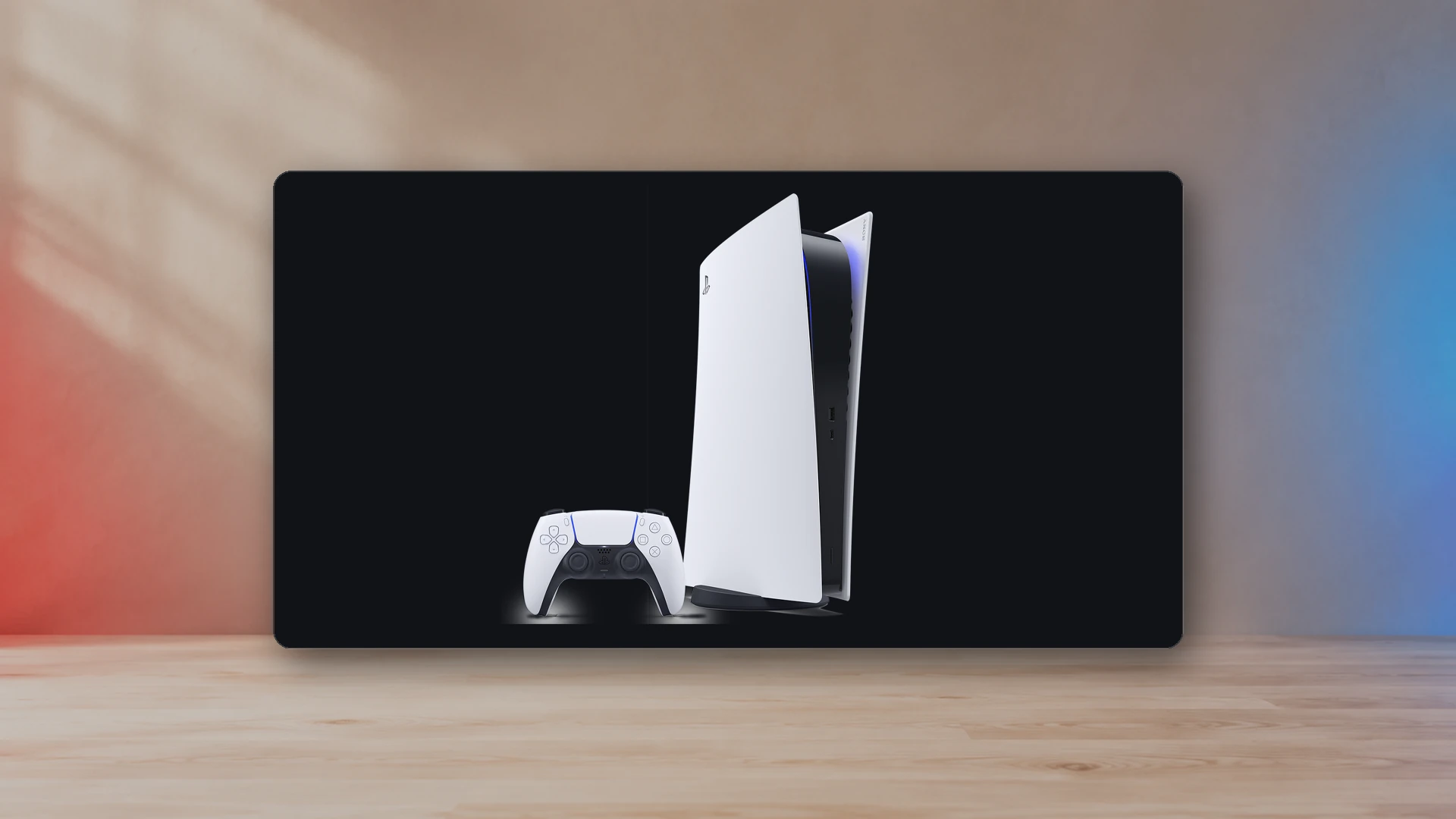
Refresh rate and frame rate are related, not identical
A display refresh rate describes how often the panel can update. Game frame rate describes how often the system produces a new frame. A 120 Hz display can show up to 120 distinct frames per second when the console or PC and the game can deliver them.
A 120 Hz panel does not force every game to run at 120 FPS. Many games offer a 120 Hz mode that reduces resolution, ray tracing, crowd density, or other settings to reach a higher performance target.
What VRR does
Variable refresh rate lets the display wait for a newly completed frame within a supported range instead of refreshing on a rigid schedule. This reduces visible tearing and can make modest frame-rate variation look smoother.
VRR is not a performance upgrade. It does not create frames, fix severe stutter, or eliminate every judder. If the game falls below the display’s effective VRR range, the result depends on low-frame-rate compensation and the implementation.
What ALLM does
Auto Low Latency Mode allows a source device to signal that the display should use its low-latency gaming mode. It is a convenience feature. The display’s Game Mode still needs to be well designed, and ALLM does not guarantee good response time or image quality.
Some users prefer to set Game Mode manually, especially when the same input is used for games and video. ALLM is useful when the display switches correctly without disabling desired features.
What HDMI 2.1 means—and does not mean
HDMI 2.1 is a specification family that includes higher-bandwidth signaling and features such as VRR and ALLM, but product labels can be confusing. Two displays marked HDMI 2.1 may support different bandwidth, resolutions, refresh rates, and optional features.
Verify the exact supported mode: for example, 4K at 120 Hz with HDR and VRR over the specific HDMI input. Do not rely on the version number alone.
Bandwidth, color, and compression
Higher resolution, refresh rate, color depth, and chroma detail all require more link bandwidth. A device may use Display Stream Compression or a different chroma format to fit a mode within the available link. These techniques are not automatically bad, but the product documentation should make the supported combinations clear.
Why 120 Hz can improve 40 FPS modes
A 120 Hz output can display 40 FPS evenly because each game frame remains on screen for three refresh intervals. On a fixed 60 Hz output, 40 FPS does not divide evenly, which can produce uneven cadence. This is why some console games offer a 40 FPS quality mode only when connected to a 120 Hz display.
VRR range matters
A display may advertise VRR but support it only within a range such as 48 to 120 Hz. When the game falls below that range, low-frame-rate compensation may repeat frames so the display remains in a valid operating window. The quality of that transition differs by display and platform.
Input lag and pixel response
Low input lag means the display begins showing the result quickly. Pixel response means the panel changes from one color to another quickly. A monitor can have low input lag and still show smearing, or fast pixel transitions and still add processing delay.
Game Mode, overdrive setting, resolution, refresh rate, HDR, and VRR can all affect measured behavior. Independent measurements are more useful than a single “1 ms” marketing number.
Setup checklist
- Use the correct high-bandwidth HDMI port on the display.
- Use a suitable certified cable for the required mode.
- Enable the display’s enhanced HDMI or gaming input mode if required.
- Enable 120 Hz and VRR in the console or PC settings.
- Confirm the game itself has the target performance mode selected.
- Verify the display reports the expected resolution, refresh rate, HDR, and VRR state.
Common misconceptions
- VRR does not increase average frame rate.
- ALLM does not make a slow panel fast.
- 120 Hz does not mean every game runs at 120 FPS.
- HDMI 2.1 branding does not guarantee every optional feature.
- HDR support does not guarantee high brightness or strong local contrast.
The NexusArc recommendation
Choose a display by verified modes, not logos. The useful question is whether the exact input accepts the exact resolution, refresh rate, HDR, and VRR combination you plan to use with low latency. A clear support table and independent testing are more valuable than a long row of feature badges.
Put the features into a complete setup
Feature support is only useful when the screen geometry and signal path fit the room. Use the Display PPI and Viewing-Distance Calculator to compare a proposed diagonal and resolution at the real seating distance, then use the gaming monitor buying guide to evaluate ports, panel type, HDR capability, and daily ergonomics.
On PS5, the console setting, display input mode, HDMI cable, intermediary receiver, and individual game can each block the intended output. The 120 Hz, VRR, and HDR setup guide provides a verification order. If the image feels slow or smeared even when the signal is correct, the input lag versus response time explainer identifies which part of the chain to investigate.
HDR and panel technology create separate decisions. Read the PS5 HDR calibration guide to avoid clipped highlights, raised blacks, and double tone mapping. For emissive displays, the OLED burn-in guide explains cumulative wear, automatic panel-care cycles, and practical habits without treating every static HUD as an immediate failure.
Sources
- PS5 4K resolution guidePlayStation Support
- PS5 system feature supportPlayStation Support
- HDMI Variable Refresh RateHDMI Licensing Administrator
- HDMI Auto Low Latency ModeHDMI Licensing Administrator
- HDMI Quick Frame TransportHDMI Licensing Administrator
NexusArc Staff
NexusArc Staff publishes desk-written reporting, guides, updates, and service information prepared by the NexusArc editorial team.