

OLED Burn-In for Gaming: Real Risks, Panel-Care Features, and Practical Prevention
A practical OLED gaming guide that separates temporary retention from cumulative wear, explains static HUD risk and automatic compensation cycles, and gives habits that preserve the panel without wasting its strengths.
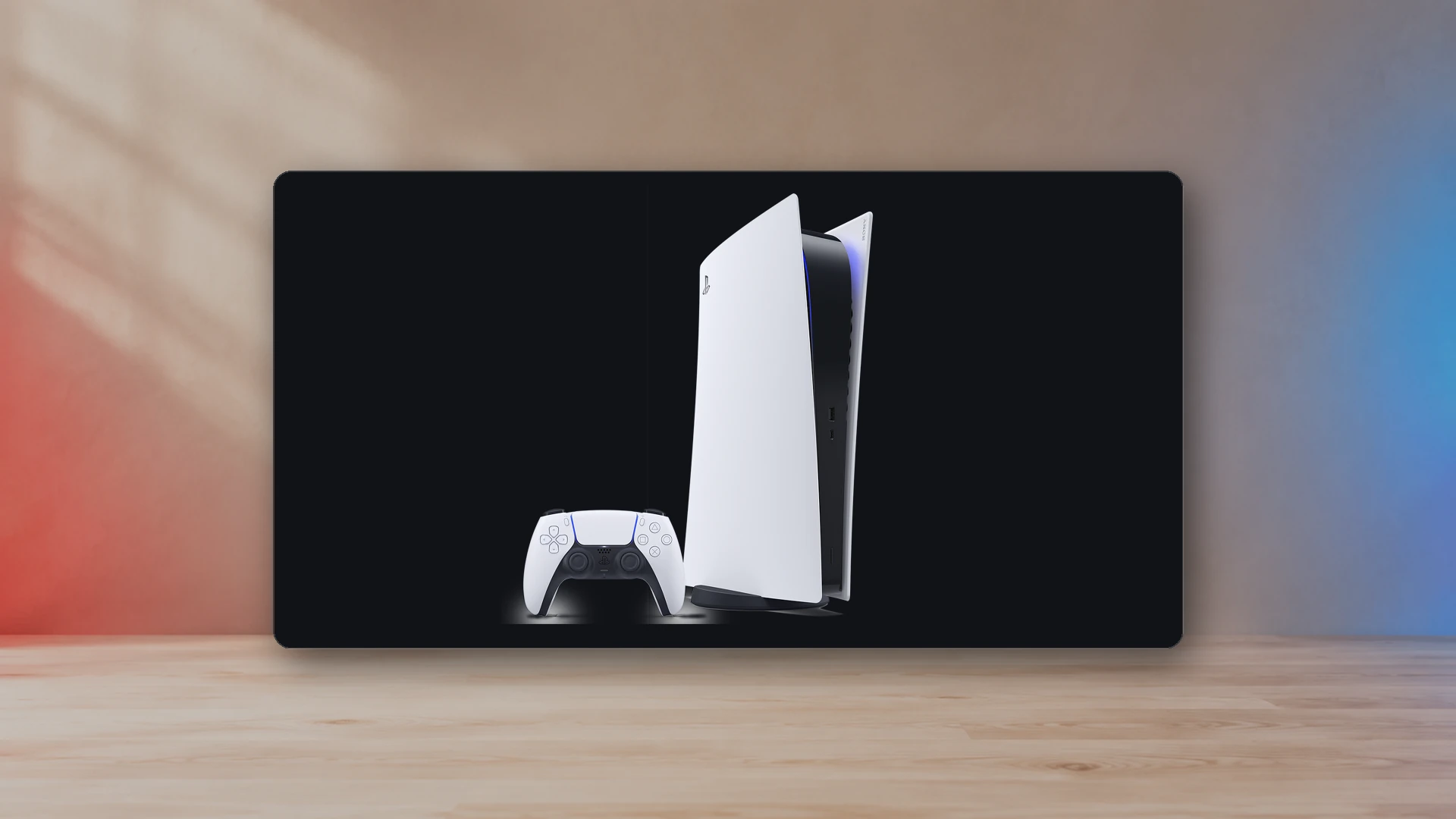
OLED is attractive for gaming because each pixel emits its own light, black pixels can turn off, and transitions are usually fast. The same self-emissive design also means pixels age according to how they are used. Persistent uneven wear can produce a visible remnant commonly called burn-in.
The risk is real, but it is not a countdown timer that makes normal gaming irresponsible. It is cumulative and workload-dependent. Long sessions with the same bright HUD, desktop taskbar, scoreboard, news ticker, or application chrome create more uneven stress than varied full-screen content. Modern televisions and monitors add compensation cycles, pixel shifting, logo dimming, screen savers, and brightness management to reduce that risk.
Temporary image retention versus permanent burn-in
Temporary image retention is a faint afterimage that appears after static or high-contrast content and then fades. Permanent burn-in is persistent uneven aging that remains visible across different content. They can look similar at first, so do not diagnose the panel from one gray screen immediately after a long session.
Change to varied full-screen content, lower the room light, and inspect after the display has completed its normal power-off routine. If the mark changes or fades, it may be temporary retention. If it remains in the same place across many colors and after normal compensation, consult the manufacturer’s support process.
Why games can create uneven wear
Games combine dynamic scenes with static interfaces. Common fixed elements include:
- Health, stamina, and mana bars.
- Minimaps, crosshairs, scoreboards, and lap counters.
- Bright ability icons and inventory grids.
- Streaming overlays, chat windows, and recording indicators.
- PC taskbars, window borders, and launchers around a game.
A static element is not automatically dangerous. Risk rises with brightness, contrast, duration, repetition, and cumulative exposure. A dim translucent HUD used for varied games is a different workload from the same bright white scoreboard displayed for thousands of hours.
How modern OLED protection features work
Short compensation cycles
Many OLED displays run a brief compensation routine after accumulated use when the display is turned off with its normal power control. Manufacturers may call it Pixel Cleaning, Screen Optimization, Panel Refresh, or another name. Interrupting power can prevent the routine from finishing.
Long panel refresh or calibration
A deeper routine may run automatically after longer accumulated use or be available manually for a persistent uniformity issue. Sony notes that panel calibration is performed automatically after the display is turned off and can reduce image retention. LG similarly documents automatic and manual Pixel Cleaning behavior.
Do not run the deep manual routine as a daily ritual unless the manufacturer instructs you to. It is a corrective maintenance process, not a substitute for normal power-off behavior.
Pixel shift
Pixel shift moves the image by a small amount so the same interface edge does not always occupy exactly the same subpixels. The movement is usually difficult to notice, but it cannot protect a large static area by itself.
Static-element or logo dimming
The display can identify persistent bright regions and reduce their luminance. This helps with scoreboards and channel logos, but it may also dim legitimate bright game elements.
Screen saver and idle dimming
Idle protection is valuable when a game is paused, a console is left on a menu, or a PC is showing the desktop. Do not disable it simply because the dimming interrupts a static screen.
Practical habits for console gaming
- Leave the console’s screen saver or power-saving timer enabled.
- Avoid leaving a paused game, map, inventory, or bright home screen displayed for hours.
- Use HUD opacity, dynamic HUD, or auto-hide options when the game provides them.
- Use a picture mode appropriate for the room instead of maximum panel brightness at all times.
- Turn the television or monitor off with its normal power control and leave it plugged in.
- Keep display firmware current.
- Use varied games and media rather than repeating one static workload indefinitely.
Practical habits for PC gaming and desktop use
Desktop use can be more demanding because the taskbar, browser controls, editor panels, and window borders remain fixed. Useful mitigations include auto-hiding the taskbar, using a dark theme, rotating wallpapers, hiding desktop icons, using a short screen-off timer, and maximizing varied content when practical.
Do not turn every window into a constantly moving distraction. The goal is to reduce prolonged high-contrast static elements, not to animate the entire desktop.
Brightness, HDR, and room lighting
HDR is designed to use high brightness selectively. Constantly forcing the display to maximum output in a dark room is unnecessary and can increase cumulative wear. Configure the display for the room and follow the PS5 HDR Calibration Guide so highlights are mapped correctly instead of simply raising every brightness control.
Automatic brightness limiting is a panel-protection and power behavior, not proof that the panel is defective. Large bright scenes can be dimmer than small highlights, and static desktop content may trigger additional protection.
Should you hide every HUD?
No. Use the game normally, then reduce risk where the cost is small. If a game offers dynamic HUD, lower opacity, or automatic hiding, those options are useful. For a competitive game where the HUD is essential, a sensible panel brightness and varied use are more practical than disabling critical information.
When to run manual pixel cleaning
Follow the display manufacturer’s support instructions. A manual routine makes sense when a persistent mark or uniformity problem remains after normal use and automatic cycles. It should not be the first response to every temporary afterimage.
- Confirm the mark appears across several inputs and built-in menus.
- Turn the display off normally and let the automatic routine complete.
- Check again with varied content.
- Run the manufacturer’s recommended manual routine if the mark remains.
- Contact support if the issue persists.
Warranty and workload questions
Coverage varies by manufacturer, model, country, and whether the product is sold as a TV or monitor. Read the actual warranty before purchase. Do not assume that a long panel warranty covers every type of image retention or every commercial workload.
How OLED compares with LCD for gaming risk
LCD does not have the same self-emissive organic-pixel wear pattern, but it can have different limitations: slower transitions, blooming, lower black-level control, IPS glow, VA smearing, or backlight uniformity issues. The right choice depends on the room, content, static-workload exposure, budget, and tolerance for maintenance.
The Gaming Monitor Buying Guide covers those broader tradeoffs. Use the Display PPI and Viewing-Distance Calculator to compare screen size and resolution without treating panel type as the only decision.
Signs that deserve attention
- A persistent logo, HUD, taskbar, or window edge visible across unrelated content.
- Color or brightness non-uniformity that remains after normal compensation.
- Repeated incomplete pixel-cleaning notifications.
- Lines, spots, or marks that also appear in the display’s built-in menu.
Rule out a cable, source, or application issue before assuming panel damage. Manufacturer support pages often begin with connection and signal checks because artifacts can originate outside the panel.
Bottom line
OLED burn-in is cumulative uneven wear, not an instant failure caused by one long game session. Use normal panel-care features, avoid unnecessary static screens, keep brightness appropriate for the room, let automatic cycles complete, and follow manufacturer guidance when a persistent mark appears. Those habits preserve the strengths of OLED without turning ownership into constant maintenance.
Sources
- Image retention on OLED TVsSony USA
- What is Panel Calibration?Sony USA
- LG TV - Troubleshooting Image Burn-InLG USA Support · 2026-06-26
- LG OLED TV Pixel CleaningLG USA Support · 2025-09-12
Harry Negron
Harry Negron leads NexusArc's editorial direction across games, player culture, gear, and technology.