

How to Connect Speakers to a PS5: USB, Monitor, TV, Optical, and Controller Methods
A connection-by-connection PS5 speaker guide covering the cleanest USB path, monitor and TV outputs, optical workarounds, controller audio, settings, and troubleshooting.
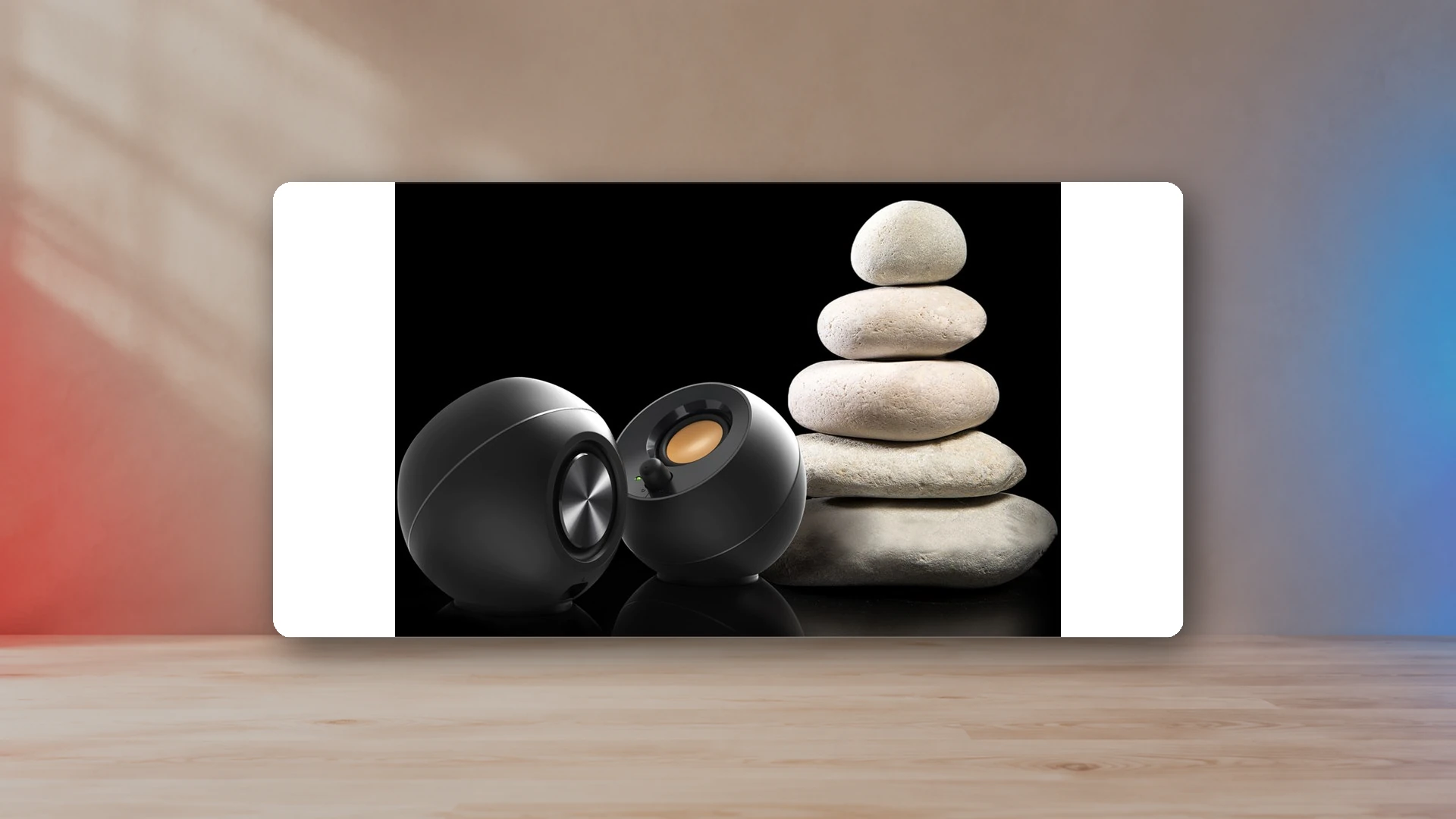
The PS5 sends its main audio through HDMI, but powered speakers can still be connected through several practical routes. The cleanest option is a speaker or soundbar that the PS5 recognizes as a compatible USB audio device. The most common option is to send HDMI to a monitor or TV and use that display’s headphone, line, optical, ARC, or eARC output. The controller’s 3.5 mm jack is the simplest fallback.
Method 1: compatible USB speakers or a USB soundbar
A compatible USB audio device can connect directly to a PS5 USB port. The Sound Blaster GS5 is one current example: Creative lists PS5 support through USB audio and notes that a USB-C-to-A adapter is not included.
- Connect the speaker to power according to its manual.
- Connect its USB audio cable to a compatible PS5 USB port.
- Open Settings > Sound > Audio Output.
- Select the USB audio device as the output device.
- Set the device volume and verify game, menu, and chat audio.
Do not assume every USB-powered speaker supports USB audio. Many inexpensive models use USB only for power and still require a 3.5 mm audio cable.
Method 2: monitor headphone or line output
This is the most common desktop route. HDMI carries video and audio from the PS5 to the monitor, and the monitor converts the audio to an analog output.
- Connect the PS5 to the monitor by HDMI.
- Connect the monitor’s 3.5 mm headphone or line output to the speakers’ AUX input.
- Select HDMI Device (TV) or the appropriate output in PS5 audio settings.
- Set the monitor volume high enough to avoid an unnecessarily weak signal, then use the speaker volume for normal control.
Not every monitor includes an audio output, and some outputs are noisy or quiet. Check the monitor manual before buying speakers around this method. The console gaming monitor guide explains why audio ports should be part of the display decision.
Method 3: TV headphone, line, optical, ARC, or eARC output
A TV can act as the audio hub. HDMI carries PS5 audio to the TV; the TV then sends audio to powered speakers, a soundbar, or an audio system.
- Headphone or line out: connect directly to a speaker’s AUX input.
- Optical out: connect to a speaker or soundbar with optical input, such as GS5 or Edifier R1280DB.
- HDMI ARC/eARC: use a compatible TV soundbar or receiver. Most low-cost desktop speakers do not include ARC.
Set the TV’s digital audio format to a mode the connected device supports. If there is no sound, begin with PCM rather than a surround bitstream.
Method 4: HDMI audio extractor
An HDMI audio extractor sits between the PS5 and display, passes the video signal through, and provides a separate analog or optical audio output. It is useful when the monitor has no audio output and the speakers do not support USB audio.
The extractor must support the video modes you use. A device that cannot pass 4K at 120 Hz, VRR, HDR, or the required HDMI bandwidth can limit the display even if its audio output works.
- Connect PS5 HDMI OUT to the extractor input.
- Connect the extractor HDMI output to the display.
- Connect the extractor’s analog or optical output to the speakers.
- Set the extractor and PS5 to a compatible audio format.
- Verify 4K, 120 Hz, HDR, and VRR modes after the extractor is installed.
For high-bandwidth console displays, a monitor with a built-in audio output is usually safer than adding an inexpensive extractor.
Method 5: DualSense controller headphone jack
The controller’s 3.5 mm jack can feed powered speakers with an AUX input. It is easy and requires no display output, but the cable runs to the controller and the controller battery handles the audio connection.
- Connect a 3.5 mm stereo cable from the controller to the speakers.
- Open Settings > Sound > Audio Output.
- Choose the controller headset output and set output to all audio when required.
- Adjust headphone volume in the PS5 Control Center, then set speaker volume.
This is best as a temporary or low-cost solution. A permanent desk normally benefits from USB or display-based routing.
PS5 audio settings to check
- Output Device: confirm the active USB, HDMI, or controller device.
- Switch Output Device Automatically: disable it if the console keeps moving audio when a controller headset or USB device is connected.
- HDMI Device Type: choose the option that matches the TV, AV amplifier, or soundbar chain.
- Audio Format: begin with Linear PCM when troubleshooting compatibility.
- 3D Audio for TV Speakers: calibrate only when the output path is intended to use that mode.
Can PS5 connect directly to Bluetooth speakers?
PS5 does not provide a general-purpose Bluetooth speaker pairing menu for ordinary A2DP speakers. A Bluetooth transmitter connected through USB or a display output may work, but compatibility, latency, microphone routing, and volume control vary. Wired USB, HDMI/display audio, optical, or AUX is more predictable for gaming.
Recommended speaker types by PS5 setup
| Setup | Connection | Speaker type |
|---|---|---|
| PS5 at a PC monitor | Compatible USB audio or monitor 3.5 mm output | Compact 2.0 pair or USB soundbar |
| PS5 at a TV | Optical, ARC/eARC, or TV line output | Soundbar or powered bookshelf pair |
| Monitor with no audio output | Compatible USB audio or HDMI extractor | USB soundbar or powered speakers |
| Temporary low-cost setup | DualSense 3.5 mm jack | Powered speakers with an AUX input |
Troubleshooting no sound
- Confirm the PS5 Output Device has not changed automatically.
- Confirm the monitor or TV is using the correct HDMI input and audio output.
- Set the digital audio format to Linear PCM.
- Test the speakers with another source.
- Test a different HDMI, USB, optical, or AUX cable.
- Remove an extractor, capture card, or switch and connect the PS5 directly to the display.
- Update the display and audio-device firmware.
Which speakers should you choose?
For a compact direct-USB route, compare Sound Blaster GS5 in the under-$100 speaker guide. For a monitor output, compact 2.0 pairs are easiest to place. For a TV optical path, powered bookshelf speakers such as the R1280DB can make sense. For complete format comparisons, use the budget speaker pillar and the 2.0 versus 2.1 guide.
Continue the gaming-audio setup
Sources
- How to change audio settings on PS5 consolesPlayStation Support
- How to set up 3D audio on PS5 consolesPlayStation Support
- How to troubleshoot PS5 picture and sound issuesPlayStation Support
- Sound Blaster GS5 official specificationsCreative Labs

Harry Negron
Harry Negron leads NexusArc's editorial direction across games, player culture, gear, and technology.