

Steam Input Joystick Settings Explained: Deadzone, Outer Ring, Curves and Anti-Deadzone
Deadzone source, deadzone shape, outer ring, response curves and anti-deadzone: what each Steam Input joystick setting changes, and the order to tune them in.
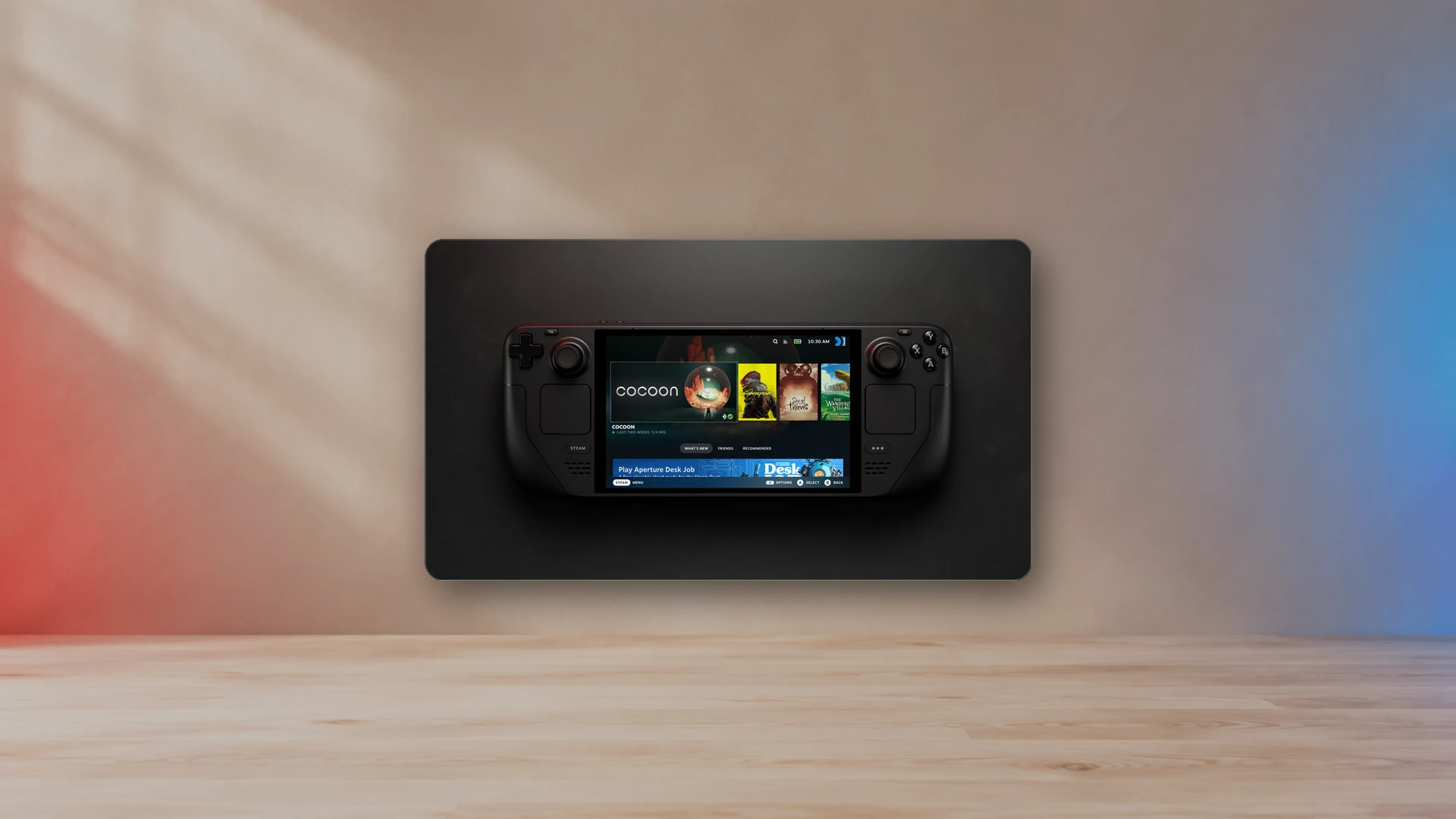
Steam Input sits between your controller and the game. It can reshape every joystick movement before the game sees it: where the stick starts responding, how fast output grows, when an extra binding such as sprint fires, and whether a small minimum output is added to beat the game's own deadzone. That is useful, but it also means the same controller can feel different in every game because each game has its own Steam Input layout on top of the game's own settings.
Measure your stick before changing Steam Input
Valve renames and moves controller options between Steam client updates, and its Steamworks input source mode reference still documents some settings under older names. The labels below follow that reference and the wording Steam users report in the current client. If a label in your client differs slightly, look for the setting with the same job rather than the exact words.
Where to find the joystick settings
Steam Input settings belong to a game's controller layout, so open them from the game you want to change.
- Steam Deck: while the game is running, press the Steam button, choose the game's controller settings, then edit the layout. Open the Joysticks section, choose the left or right stick behavior, and open its settings (gear icon). Steam Deck also has system-wide stick calibration and deadzone options under Settings › Controller.
- Desktop and Big Picture mode: open the game in your library, open its controller settings, and edit the layout. The Joysticks section works the same way as on Steam Deck.
- Steam Controller and third-party pads: the same layout editor applies to Valve's Steam Controller and to PlayStation, Xbox, Switch Pro and generic controllers once Steam Input is enabled for that controller type in Steam's controller settings.
If nothing you change has any effect, check whether Steam Input is active for that game first. Each game's Properties include a controller override that can force Steam Input on or off. A game that reads the controller directly ignores the layout entirely.
Joystick behaviors decide which settings appear
Each stick is assigned a behavior, and the settings menu only shows options that make sense for it. The most common choices are:
| Behavior | What the game receives | Settings that matter most |
|---|---|---|
| Joystick (move or camera) | A normal analog stick | Deadzones, stick response curve, outer ring binding, anti-deadzone |
| Mouse-style joystick | Mouse-like motion converted to stick output | Sensitivity, minimum X/Y output, smoothing |
| Directional pad | Digital up/down/left/right | Deadzone, layout (4-way or 8-way), outer ring binding |
| Flick stick, scroll wheel, radial menu | Camera turns, list scrolling or menu picks | Mode-specific settings, not analog deadzones |
For movement and camera control in a game that supports controllers, keep the stick on a joystick behavior. Most deadzone and curve advice below only applies there.
Deadzone source and the two deadzone layers
A Steam Input stick can pass through two deadzone layers before the game applies its own. The first is the controller's default deadzone (on Steam Deck, the value set through calibration). The second is the layout's own deadzone setting. Steam users describe the layout option as a deadzone source or type with three choices: use the controller's default, use no deadzone, or use a custom value. Users report that the calibration deadzone only applies while the layout uses the default choice; a custom value or no deadzone replaces it.
That explains a common Steam Deck complaint: changing the system calibration deadzone appears to do nothing in one game, because that game's layout uses its own custom deadzone. Check the layout before you recalibrate again.
Then add the game's deadzone on top. If Steam removes the first 10% of stick travel and the game removes another 15% of what is left, the stick feels much less responsive than either number suggests. Tune one layer and keep the other small.
Inner deadzone, outer deadzone and deadzone shape
The inner deadzone is the center area where movement is ignored. It hides drift and noise at the cost of fine control. The outer deadzone decides how far you must push before output reaches 100%. A stick that never quite reaches full speed in one direction usually needs a smaller outer range, not a larger inner one. Our controller deadzone guide covers both in detail.
The deadzone shape decides how the inner deadzone is measured. Steam's custom deadzone options include a circular and a cross-shaped mode. Valve does not publish its exact formulas, so the example below uses the standard scaled-deadzone model to show the difference.
Assume an inner deadzone of 0.15 and a stick pushed 30% of the way toward the upper-right diagonal (45 degrees). Each axis reads 0.30 × 0.707 = 0.212.
| Shape | How it is measured | Output at 30% diagonal tilt | Feel |
|---|---|---|---|
| Circle (radial) | Distance from center: 0.30, rescaled to (0.30 − 0.15) ÷ 0.85 = 0.176 | X and Y both about 0.125 | Smooth in every direction; best for camera and 3D movement |
| Cross (axial) | Each axis separately: (0.212 − 0.15) ÷ 0.85 = 0.073 | X and Y both about 0.073 | Small off-axis movement is removed, so the stick snaps to straight lines; diagonals start later |
A cross shape suits menus, 2D games and driving games where you want clean straight inputs. A circle suits shooters and third-person cameras. If diagonals feel slow at full tilt, check the game's own deadzone shape too, and test your stick's outer range with our circularity explainer.
Outer ring binding is not an outer deadzone
The outer ring binding sends an extra command, often sprint or walk, when the stick passes a chosen radius. Valve documents three related settings: the binding itself, the ring radius, and an invert option that fires the binding inside the radius instead of outside it. Changing the ring does not change the analog output the game receives.
- Sprint fires too early: raise the ring radius so the stick has to travel further.
- Sprint never fires on one diagonal: lower the radius slightly; worn or uneven sticks may not reach the same distance in every direction.
- You want walk on light tilt: bind walk to the ring and turn on invert, so it fires only inside the radius.
Stick response curves
The response curve changes how output grows between the deadzone and full tilt. Valve lists Linear (the default), Aggressive, Relaxed, Wide and Extra Wide, and the current client also offers a custom curve. Valve does not publish the formulas. The power curve below (output = tilt raised to an exponent) shows the idea:
| Curve type | Example exponent | Output at half tilt | Use it when |
|---|---|---|---|
| Linear | 1.0 | 0.50 | You want the game's own curve to do the work |
| Relaxed / wide | 2.0 | 0.25 | Small aim corrections overshoot; you want more control at low tilt |
| Aggressive | 0.5 | 0.71 | Movement feels sluggish and you want speed early |
Most games already apply a curve. Stacking a Steam curve on top of a game curve can make the middle of the stick feel dead, so start with Linear in Steam and change the game's curve first. Use a Steam curve when the game has no curve option.
Anti-deadzone and the anti-deadzone buffer
Anti-deadzone adds a minimum output as soon as the stick leaves Steam's own deadzone. It exists for games with a large built-in deadzone that you cannot turn off: if the game ignores the first 20% of stick input, an anti-deadzone near 20% makes the first bit of physical movement register in the game.
The anti-deadzone buffer keeps a small center area that sends no input at all while anti-deadzone is on. Without it, any tiny drift is lifted straight to the minimum output, and the camera or character creeps on its own. That creeping is the most common sign the anti-deadzone is set too high.
- In the game, find the smallest stick tilt that produces any movement. Our deadzone tester shows the raw value your stick sends at that point.
- Set Steam's anti-deadzone slightly below that value.
- Release the stick and wait 10 seconds. If anything moves, lower the anti-deadzone or raise the buffer.
Tuning order that avoids fighting settings
- Test the raw stick with the deadzone tester: center offset at rest, and whether every direction reaches the edge.
- Set the game's own deadzone to the lowest value that stays still at rest.
- Add a Steam inner deadzone only if the game has no deadzone option or drift remains.
- Add anti-deadzone only if the game's built-in deadzone feels large and cannot be lowered.
- Adjust the response curve last, and in only one place: the game or Steam.
- Set the outer ring radius after the curve, because the curve changes how far you push in practice.
Troubleshooting by symptom
| Symptom | Likely cause | What to change |
|---|---|---|
| Camera drifts in one game only | That layout uses no deadzone, or anti-deadzone is too high | Set the deadzone source back to the default, or lower the anti-deadzone |
| Drift in every game | Stick hardware or calibration | Recalibrate, then follow the stick drift guide |
| Calibration change does nothing | The game's layout uses a custom deadzone | Use the default deadzone source in that layout |
| Double inputs or wrong button prompts | The game reads the controller directly and through Steam Input | Turn Steam Input off for that game, or turn the game's own controller support off |
| Diagonals feel slow | A cross-shaped deadzone, or circularity loss at the edge | Use the circle shape; check the outer range |
| Sprint toggles unexpectedly | Outer ring radius too small | Raise the ring radius |
| Aim overshoots small targets | Curve too aggressive, or curves stacked | Linear in Steam, relaxed curve in the game |
Steam Input, game settings or repair?
Steam Input changes how the signal is interpreted. It cannot fix a worn potentiometer or a loose stick module. If the tester shows the center wandering by different amounts each time you release the stick, settings only hide the problem by giving up fine control. Controllers with magnetic sticks, including Valve's 2026 Steam Controller, which uses TMR thumbsticks, avoid the contact wear behind most drift, but they still need sensible deadzones and calibration. For hardware checks and repair options, see how to test and fix controller stick drift.
Choosing a new controller? TMR vs Hall effect vs potentiometer joysticks compares the stick sensors and which ones resist drift.
Frequently asked questions
Why doesn't my Steam Deck stick calibration change anything in a game?
Steam users report that the calibration deadzone only applies when the game's controller layout uses the default deadzone source. If the layout uses a custom deadzone or no deadzone, that value replaces the calibration. Check the game's layout first.
What is the outer ring binding in Steam Input?
It is an extra command, such as sprint or walk, that fires when the stick passes a chosen radius. It does not change the analog output the game receives. Raise the ring radius if the binding fires too early.
What does anti-deadzone do in Steam Input?
It adds a minimum output as soon as the stick leaves Steam's deadzone, so games with a large built-in deadzone respond to small movements. If the camera creeps on its own, the anti-deadzone is too high or the anti-deadzone buffer is too small.
Should I turn Steam Input off?
Turn it off for a game that already supports your controller well and shows double inputs or wrong button prompts. Keep it on when you need remapping, gyro, outer ring bindings or support for a controller the game does not recognize.
Sources
- Steam Input source modesValve
- Calibration menu for setting dead zones (Steam Deck bug reports discussion)Steam Community
- The Steam Controller launches this May for £85TheSixthAxis · 2026-04-27
NexusArc Staff
NexusArc Staff publishes desk-written reporting, guides, updates, and service information prepared by the NexusArc editorial team.