

DLSS, FSR, XeSS, and Frame Generation Explained for PC Players
A vendor-neutral explanation of modern upscaling and frame-generation technologies, including hardware support, base frame rate, latency, artifacts, and settings advice.
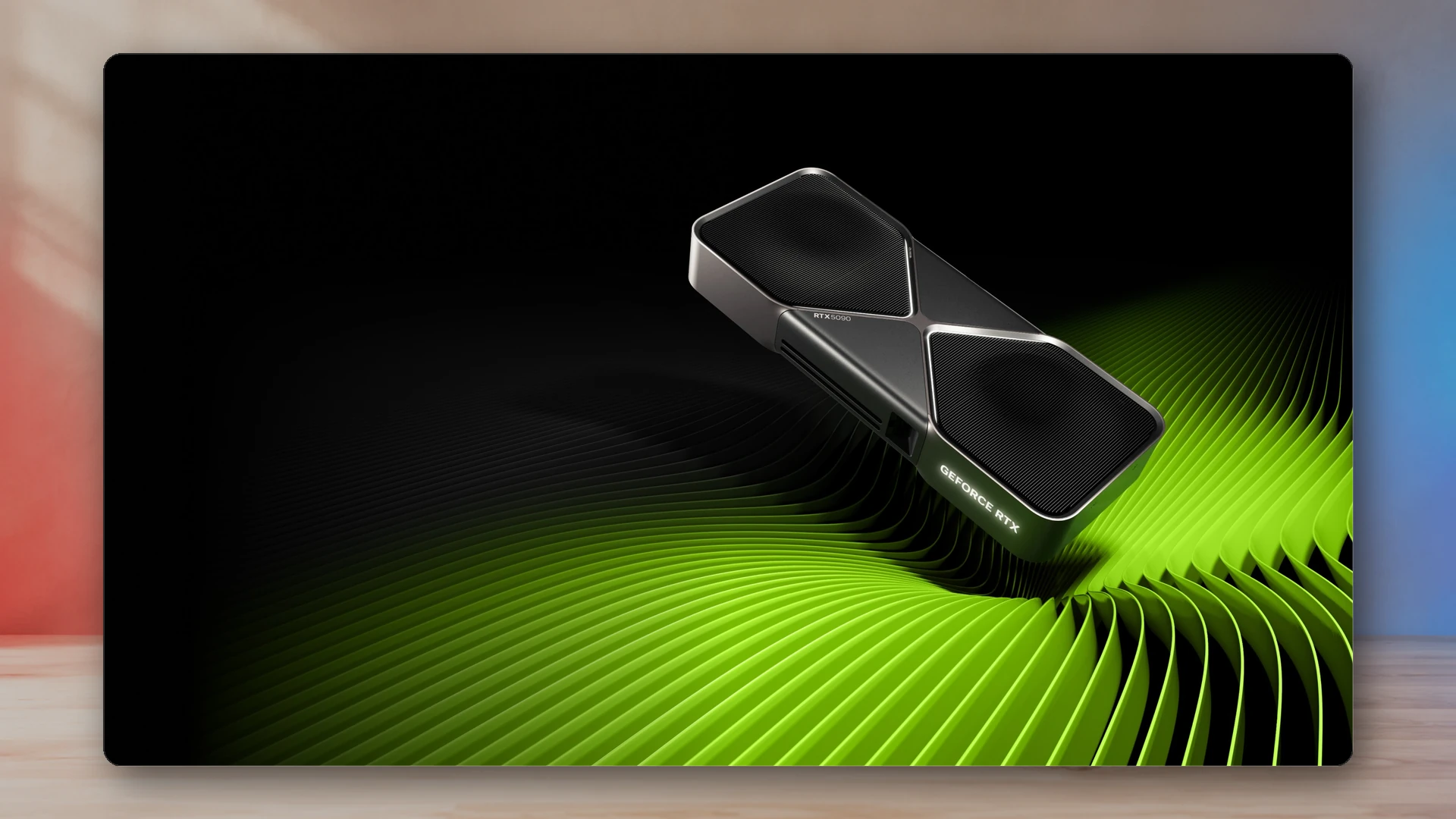
Upscaling and frame generation solve different problems
Modern PC games often group several technologies under one menu, but two separate jobs are happening. Upscaling renders the game at a lower internal resolution and reconstructs a higher-resolution output. Frame generation creates intermediate frames between traditionally rendered frames to increase displayed motion smoothness.
Upscaling can reduce the GPU cost of each rendered frame. Frame generation increases the number of frames shown, but it does not make the underlying simulation or input sampling run at the generated frame rate. That distinction is the key to using these tools well.
NVIDIA DLSS
DLSS is NVIDIA’s suite for GeForce RTX hardware. Super Resolution reconstructs a higher-resolution image using motion data and a trained model. Newer DLSS versions use transformer-based models, while Frame Generation and Multi Frame Generation create additional frames on supported RTX generations.
DLSS support depends on the game, GPU generation, and feature. A game can support Super Resolution without supporting Frame Generation. NVIDIA’s application-level overrides can update supported model presets, but the game integration still matters.
AMD FSR
AMD FidelityFX Super Resolution has evolved from broad analytical upscaling into a suite that includes machine-learning upscaling, frame generation, and other neural rendering features on supported hardware. FSR 4 and later SDK updates focus on improved temporal stability, detail preservation, and reduced ghosting.
FSR’s hardware support depends on the specific version and feature. Older FSR upscalers can work across many vendors, while newer machine-learning features and frame-generation paths have more specific requirements. Do not assume the FSR label guarantees identical behavior on every GPU.
Intel XeSS
Intel XeSS Super Resolution uses temporal information and machine learning to reconstruct higher-resolution output. XeSS Super Resolution can support hardware beyond Intel Arc through a compatible path, and XeSS SDK 2.1 added Frame Generation support for non-Intel GPUs with Shader Model 6.4. XeSS 3 adds 3x and 4x Multi-Frame Generation for Intel Arc. Xe Low Latency accompanies frame generation, but standalone use on non-Intel GPUs is not supported. Check the SDK version integrated into each game and its supported hardware.
XeSS 2 and later packages treat upscaling, frame generation, and low latency as related but separately meaningful tools. The best setting depends on whether the game is limited by GPU rendering, CPU simulation, or display refresh.
Why the base frame rate matters
Frame generation works best when the game already has a stable base frame rate. If the base is low, input response, animation data, and artifact visibility can remain poor even when the displayed counter looks high. Intel’s developer guidance recommends at least 40 FPS input and identifies 60 FPS as a better target for latency and smoothness.
A generated 120 FPS output from a stable 60 FPS base can look substantially smoother. A generated 60 FPS output from an unstable 25 to 30 FPS base may still feel sluggish and can expose more interpolation errors.
Latency and low-latency modes
Generated frames do not contain a new game simulation step. Without latency management, extra presentation work can make the displayed result feel less responsive. NVIDIA Reflex, AMD latency features, and Intel Xe Low Latency are designed to reduce render queues or coordinate frame timing.
Players should avoid stacking multiple driver and in-game latency systems without understanding how they interact. Use the feature recommended by the game integration, then verify responsiveness in the exact title.
Common artifacts
- Disocclusion errors around moving characters or objects.
- Ghosting on particles, transparent effects, or fine geometry.
- Distorted UI elements when the game does not provide clean interface data.
- Uneven frame pacing when the base frame rate changes rapidly.
- Over-sharpening or unstable detail at aggressive performance modes.
Image quality depends on the game’s motion vectors, depth information, reactive masks, model version, and implementation quality. Brand names alone cannot predict the result.
How to choose a mode
| Situation | Starting point |
|---|---|
| 4K display, GPU-limited game | Quality or Balanced upscaling; add frame generation only if the base frame rate is stable. |
| 1440p competitive play | Prefer native or quality upscaling and low latency; use frame generation only when responsiveness remains acceptable. |
| Heavy path tracing | Upscaling plus frame generation may be necessary, but monitor base frame rate and artifact quality. |
| CPU-limited game | Upscaling may not help much; frame generation can smooth output but does not increase simulation rate. |
| Low base frame rate | Reduce settings first. Do not use the generated counter to hide unstable input frames. |
Native anti-aliasing modes
Some suites offer native-resolution anti-aliasing modes that use the reconstruction model without lowering internal resolution. These modes target image quality rather than performance and can be useful when the GPU already has enough headroom.
The NexusArc recommendation
Judge the final experience, not the logo. Start with the highest-quality upscaling mode that reaches a stable base frame rate, then add frame generation if motion smoothness improves without unacceptable latency or artifacts. A stable 60 FPS base with good reconstruction is usually more useful than an unstable output whose counter is inflated by generated frames.
Judge generated frames with the underlying frame time
Use the Frame-Time and FPS Converter to translate the base rendered rate and low-percentile results into milliseconds before judging frame generation. If the base run contains spikes, follow the PC stutter diagnosis guide rather than expecting generated frames to remove them. Hardware upgrades should also respect a documented power envelope; the PC Power-Supply Estimator and PSU guide make those assumptions visible.
Sources
- NVIDIA DLSS 4.5 overviewNVIDIA · 2026-01-05
- AMD FidelityFX SDKAMD GPUOpen
- Intel XeSS 2 whitepaperIntel
- Intel XeSS SDK release notesIntel
- XeSS Frame Generation developer guideIntel
NexusArc Staff
NexusArc Staff publishes desk-written reporting, guides, updates, and service information prepared by the NexusArc editorial team.